
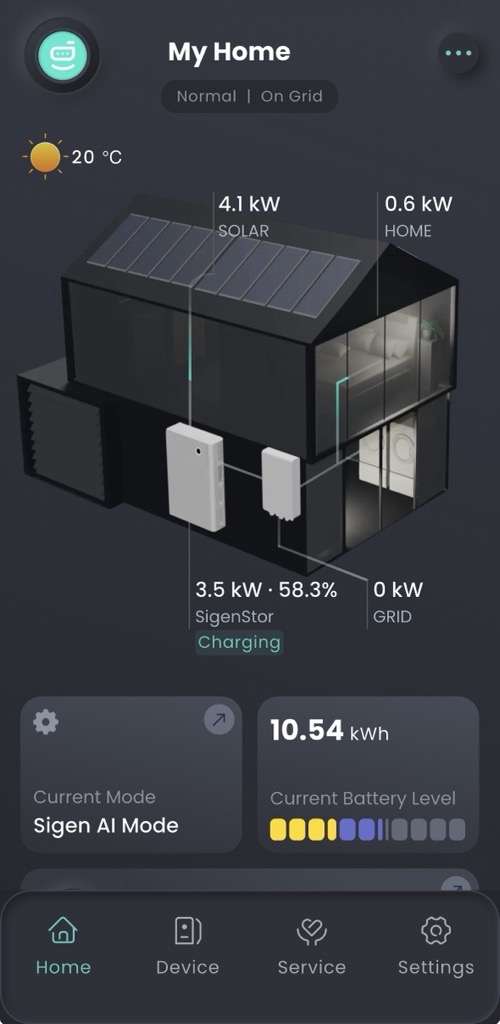
For homeowners with a Sigenergy system. How Shelly devices fit into mySigen, how to add them, and what to expect from automatic load control.
What Shelly adds to your Sigenergy system
Sigenergy ships native Shelly support inside the mySigen app. Once a Shelly switch or plug is added as a smart load, you can:
-
Have it switch on automatically when there's PV surplus, so spare solar power runs a heater, a charger, or any appliance rather than going to the grid or limiting the production.
-
Set Time-of-Use (TOU) windows, turning things on during cheap-tariff hours and off during expensive ones.
-
See per-device consumption in the energy dashboard, next to PV, battery, and grid.
-
Manage up to 24 Shelly smart loads per Sigenergy system.
How to add a Shelly device to mySigen
-
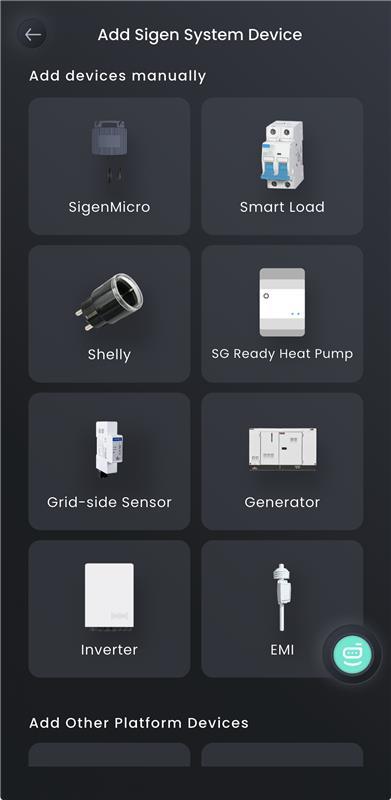
Open mySigen, then Add device → Smart Load.
-
Choose how to find the device:
-
WLAN Network, if the device is already on your home Wi-Fi (the common case for installations done by an electrician).
-
Bluetooth, only for a factory-fresh device that hasn't been connected to Wi-Fi yet.
-
-
Wait for the scan, pick your device, give it a name, and set a schedule.
-
During the Smart Load setup, mark each device as critical (stays on during a grid outage, runs from battery backup) or non-critical (switches off when the grid fails, to preserve battery capacity for the loads that actually matter).
Tip, telling identical devices apart. The WLAN scan lists devices by model (for example ShellyPlus1PM). If you have several identical units in the same house, label them or note their location before you start pairing, so you know which row in the list is which room.
If your Shelly controls more than one circuit. Some Shelly models control more than one circuit (for example the 2-channel Pro 2PM or 4-channel Pro 4PM). When you add one, mySigen sets up only the first channel; add the others from the Smart Load section - find the Shelly you just added, then add each remaining channel. That step currently looks like adding a brand-new device (the add and pairing screens appear again) even though your Shelly is already connected - that is normal for now, and the extra channels are added correctly. This reflects how the mySigen app works today; if a future update adds all channels in one step, this note may no longer apply.
How the system works after setup
Once a device is added as a smart load, mySigen runs it according to your schedules, PV surplus rules, and critical/non-critical settings. The integration is tuned to work independently, so no day-to-day input is required from you.
FAQ
How many smart loads can I add?
Up to 24 per Sigenergy system.
Does the device need internet for mySigen to control it?
The device needs to be on the same local network as your Sigenergy gateway. The gateway itself needs internet to reach mySigen's cloud.
What happens to my smart loads during a power outage?
Devices marked as critical stay on and run from the battery backup. Devices marked as non-critical switch off when the grid fails. You can change the setting at any time from the Smart Loads list in mySigen.
The WLAN scan only found a few of my devices. What now?
Run the scan again. Devices appear gradually as they answer the discovery request. If a device still doesn't show up after several scans, check that it is online and on the same Wi-Fi network.