
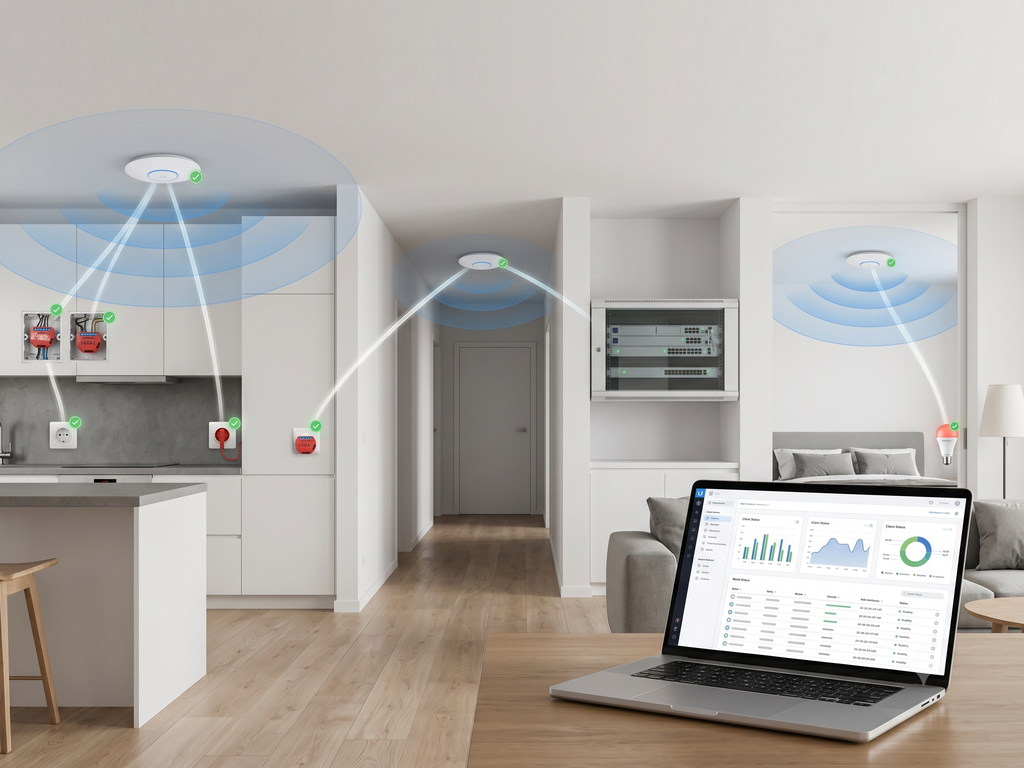
Repeated Shelly Wi-Fi disconnections on a managed network may be caused by roaming policies, radio design, addressing, firmware, or power. This guide explains how to establish a stable UniFi IoT baseline, test each variable individually, and decide when assigning a fixed device to one access point is appropriate.
When a Shelly device repeatedly disconnects and reconnects, the device is not necessarily the only part of the system to investigate. In a managed Wi-Fi network, access points and clients continuously make decisions about association, signal quality, roaming, channels, and transmit power. Features that improve mobility for laptops and phones may not produce the same result for fixed IoT devices.
Community reports from both Ubiquiti UniFi and TP-Link Omada installations describe a similar pattern: modern mobile devices roam successfully, while some Shelly, camera, and Tuya devices become unstable when encouraged to move between access points.
The practical response is not to disable every advanced feature without investigation. It is to establish a simple, measurable IoT baseline and then add features back one at a time.
Important: The settings below are a troubleshooting baseline, not a universal configuration standard. Shelly models, access points, firmware, interference, building materials, and network scale all affect the result.
Specialist review note: A UniFi equipment specialist reviewed the general direction and agreed with the main approach, but emphasized two points: keep Shelly devices on a dedicated SSID with roaming disabled where possible, and avoid AP locking unless the signal situation is genuinely poor. UniFi rolling upgrades normally move clients away from an access point before firmware is applied, so AP locking can remove a useful maintenance behavior.
Start by Confirming the Symptom
A device shown as offline in an application does not automatically indicate a Wi-Fi roaming problem. Similar symptoms can be caused by:
-
weak or inconsistent 2.4 GHz coverage;
-
radio interference or crowded channels;
-
DHCP lease or address conflicts;
-
incompatible security settings;
-
device firmware;
-
unstable power or a device reboot;
-
cloud or internet connectivity rather than local Wi-Fi;
-
aggressive minimum-signal or roaming policies.
Before changing the network, record the affected Shelly model, its firmware version, the access point it uses, its signal level, and the time of each disconnect. Compare the UniFi client history with the Shelly device uptime and reboot information where available.
This distinction matters. If the device is rebooting, changing roaming settings will not fix the underlying power or firmware problem.
Build a Conservative IoT Baseline
For troubleshooting, create a dedicated IoT SSID for Shelly and other fixed IoT devices, then keep its behavior predictable. The specialist feedback is to make this separation explicit: Shelly devices should not be mixed into a mobility-focused user SSID if that SSID relies on roaming behavior intended for phones and laptops. A useful starting point is:
-
Use a separate IoT SSID for Shelly devices.
-
Use 2.4 GHz for Shelly models that support or require that band.
-
Disable band steering on the IoT SSID.
-
Disable Fast Roaming during the initial test.
-
Disable Minimum RSSI during the initial test.
-
Avoid automatic channel and transmit-power changes while collecting data.
-
Use WPA2 or another security mode supported by every device being tested.
-
Keep the SSID name, password, and VLAN configuration unchanged during the comparison.
Do not assume that every Shelly product has identical Wi-Fi capabilities. Check the requirements of the exact model, especially for products with 5 GHz support or different hardware generations.
The purpose of this baseline is isolation. It removes several network-driven variables so that coverage, interference, and client behavior can be observed more clearly.
Design the 2.4 GHz Radio Network Deliberately
A dedicated SSID cannot compensate for poor radio design. In multi-access-point sites, check the channel, width, power, and coverage of every AP.
Use 20 MHz channels on 2.4 GHz unless a site-specific survey justifies otherwise. Select non-overlapping channels according to the regulatory domain and the networks visible at the site. Avoid placing adjacent APs on the same channel when they can hear each other strongly.
Transmit power also needs deliberate tuning. Maximum power on every AP can make a network look strong while increasing co-channel interference and creating asymmetric links: the device can hear the AP, but the AP cannot hear the device reliably.
One community recommendation uses approximately -68 dBm as a target at each Shelly device. Treat this as a provisional field target, not a guaranteed threshold. Stability, packet loss, retry rate, and changes over time are more useful than one signal reading.
Why Roaming Can Affect Fixed IoT Devices
Roaming is valuable for devices that move. A phone should transition between access points as its user walks through a building. A relay installed behind a wall switch does not move, so frequent AP selection changes provide little benefit.
In practice, roaming is not controlled by one universal switch. The client normally makes the final association decision, while the network can provide suggestions, disconnect clients below a threshold, or accelerate reauthentication. Support for these mechanisms varies between IoT chipsets and firmware versions.
This can produce a cycle:
-
The network encourages or forces the client away from its current AP.
-
The device reconnects to another AP or returns to the original one.
-
The network evaluates it again and initiates another transition.
-
The device repeatedly disconnects, redirects, or becomes temporarily unavailable.
A community member reported this behavior in an Omada installation. Laptops and newer phones roamed correctly, while Shelly and other fixed IoT devices were more stable when assigned to a specific EAP. This is useful supporting evidence, but it does not prove that UniFi and Omada implement client steering in the same way.
When to Lock a Shelly Device to an Access Point
Locking a client to a selected AP can be a useful stabilization test after coverage has been validated. It is most appropriate when:
-
the device is permanently installed;
-
one AP provides consistently good coverage;
-
logs show repeated AP transitions around disconnect events;
-
channel and power settings are already stable;
-
the selected AP is expected to remain in service.
AP locking has a real tradeoff. If the selected AP fails, is restarted, or is removed for maintenance, the device may not connect through another AP. The Omada contributor specifically reported this loss of failover for fixed IoT clients.
A UniFi specialist also warned that locking is usually not a good default choice. UniFi supports rolling upgrade behavior where the controller can move clients away from an access point before applying firmware. If a Shelly device is locked to that AP, the network may lose that normal maintenance path.
For that reason, AP locking should be documented per device and tested during an AP restart. Use it only when the installed device has a real stability problem and the selected AP is clearly the best available radio path. It should not be used to hide inadequate coverage or as a routine first step.
Use Predictable Address Management
Wi-Fi association and IP addressing are separate stages. A device may connect to an AP successfully and still appear offline because it cannot obtain or retain a usable address.
For mains-powered Shelly devices, DHCP reservations are generally easier to manage than manually configured static addresses. They provide predictable addresses while keeping address ownership visible in the DHCP server.
Community advice is divided on battery-powered devices. One recommendation is to use static addresses to reduce DHCP traffic during short wake periods, but this should be tested on the exact device and validated against current Shelly guidance before it becomes a deployment standard.
Whichever method is used, check for duplicate addresses, exhausted pools, unexpected VLAN assignment, and DHCP events at the same time as the reported disconnect.
Change One Variable at a Time
The fastest way to lose the cause is to change every setting at once. Start with the conservative baseline and observe the network for a defined period. Then introduce one change and compare the result.
|
Test |
Baseline |
Variant |
What to measure |
|---|---|---|---|
|
Fast Roaming |
Off |
On |
Disconnects and AP transitions |
|
Band Steering |
Off |
On |
Association failures and reconnect time |
|
Minimum RSSI |
Off |
Site-selected value |
Forced disconnects and recovery |
|
Radio management |
Fixed |
Automatic |
Channel or power changes near failures |
|
AP selection |
Automatic |
Locked |
Stability and behavior during AP outage |
|
Addressing |
DHCP reservation |
Existing method |
Lease failures and conflicts |
For each test, record:
-
date and duration;
-
affected device and firmware;
-
UniFi Network and AP versions;
-
AP, channel, signal, and retry information;
-
disconnect reason where available;
-
device uptime or reboot reason;
-
the exact setting changed;
-
the rollback value.
A Practical Troubleshooting Sequence
Use the following order when repeated reconnects affect one or more Shelly devices:
-
Confirm that the device is not rebooting because of power or firmware.
-
Verify the exact model's Wi-Fi and security requirements.
-
Check signal stability and interference at the installed location.
-
Move the device to a dedicated, conservative IoT SSID.
-
Disable roaming assistance on that IoT SSID, then disable band steering and Minimum RSSI temporarily.
-
Fix channels and transmit power during the observation period.
-
Review DHCP and address-conflict events.
-
Compare disconnect times with AP association changes.
-
Test AP locking only if one AP has reliable coverage.
-
Reintroduce required optimization features individually.
-
Document the final settings and how to recover during an AP failure.
The Goal Is Predictability
UniFi optimization features are not inherently unsuitable for IoT networks. They are tools designed for particular client behavior and network goals. The problem appears when a fixed, constrained client is managed as though it were a modern mobile device.
A stable Shelly deployment starts with predictable radio conditions, compatible security, reliable addressing, and evidence from both sides of the connection. Once that baseline is stable, roaming and other optimization features can be tested deliberately instead of enabled by assumption.
That approach scales better than searching for one universal setting: measure the failure, simplify the environment, confirm the cause, and preserve a documented rollback path.