
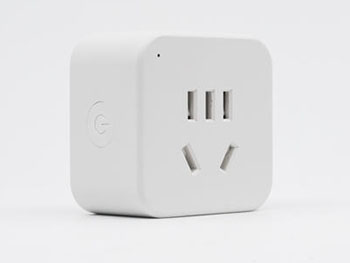
Device identification
-
Device name: Shelly Plug CN Gen3
-
Device model: S3PL-00110CN
-
Device SSID: ShellyPlugCNG3-XXXXXXXXXXXX
-
BLE Model ID: 0x1867
Short description
Shelly Plug CN Gen3 is a Wi‑Fi smart plug built for the Chinese standard Type I outlet, designed to make everyday appliances smarter and easier to manage. It adds remote control and built-in power metering in a compact plug-in format.
Use it to automate plugged-in devices with schedules, local actions, and timer-based shutoff, so appliances run only when needed. This helps reduce energy waste and lowers the risk of leaving devices on by mistake.
It supports Matter for seamless use alongside other Matter devices, including Apple ecosystems via Matter. It also connects over Wi‑Fi and Bluetooth 4.2 and integrates with Shelly Cloud, Home Assistant, and other popular home automation platforms.
Main features
-
Chinese standard plug Type I form factor
-
Matter support for interoperability with other Matter devices
-
Wi‑Fi and Bluetooth 4.2 connectivity
-
Built-in power metering for monitoring plugged-in appliance consumption
-
Locally stored schedules for reliable time-based automation
-
Local actions for on-device automations without relying on the cloud
-
Scripting for advanced automations when Matter is not enabled
-
BLE gateway functionality to support Bluetooth-based setups
Use cases
-
Use it as a Matter smart plug in mixed-brand automations, where a single Matter scene controls multiple devices at once. For example, a “Good Night” scene can switch off the plug’s output automatically using Matter support, helping ensure appliances are not left running overnight.
-
Prevent forgotten appliances by setting a countdown timer that turns the plug off automatically after a set period. This uses the countdown timer and locally stored schedules to reduce the chance of leaving devices like irons or heaters on for too long.
-
Cut office energy waste by scheduling automatic shutdown outside working hours, such as evenings and weekends. With schedules and power metering, you can both enforce the off-hours rule and track the impact on consumption over time.
-
Reduce standby draw by switching devices off when their power use drops after finishing a task. Using power metering as the condition and local actions as the response, the plug can cut power automatically once a device is effectively idle.
-
Build quick, room-level automations by using the plug’s BLE gateway capability to react to Bluetooth-based triggers. For instance, a Bluetooth trigger can turn a plugged-in lamp or appliance on/off automatically, keeping control responsive while staying within your local setup.
Main applications
-
Residential
-
MDU (Multi Dwelling Units - apartments, condominiums, hotels, etc.)
-
Light commercial (small office buildings, small retail/restaurant/gas station, etc.)
-
Government/municipal
-
University/college
Integrations
Amazon Alexa supported capabilities
Yes
Google Smart Home supported traits
Yes
Samsung SmartThings supported capabilities
Yes
Connectivity and protocols
-
Wi-Fi
-
Bluetooth
Safety function
-
Overvoltage protection
-
Undervoltage protection
-
Overcurrent protection
-
Overpower protection
Supported loadtypes
-
Resistive (incandescent bulbs, heating appliances)
-
Capacitive (capacitor banks, electronic equipment, motor starting capacitors)
-
Inductive with RC Snubber (LED light drivers, transformers, fans, refrigerators, air-conditioners, washing machines, tumble dryers)
User interface
Inputs
Specifications
|
Quantity |
Value |
|---|---|
|
Physical |
|
|
Size (HxWxD): |
50x50x51 mm / 1.97x1.97x2 inch |
|
Weight: |
60 g / 2.12 oz device only 72 g /2.54 oz with package |
|
Compatible plugs: |
GB 1002, Type I (CN) |
|
Compatible sockets: |
GB 1009, Type I (CN) |
|
Shell material: |
Plastic |
|
Shell color: |
White |
|
Environmental |
|
|
Ambient working temperature: |
-20 °C to 40 °C / -5 °F to 105 °F |
|
Humidity: |
30 % to 70 % RH |
|
Max. altitude: |
2000 m / 6562 ft |
|
Electrical |
|
|
Power supply: |
220 V~ 50Hz |
|
Power consumption: |
< 1 W |
|
Output circuits ratings |
|
|
Max. switching voltage: |
250 V |
|
Max. switching current: |
10 A |
|
Max. output power: |
2500 W |
|
Sensors, meters |
|
|
Voltmeter (AC): |
Yes |
|
Ammeter (AC): |
Yes |
|
Radio |
|
|
Wi-Fi |
|
|
Protocol: |
802.11 b/g/n |
|
RF band: |
2401 - 2483 МHz |
|
Max. RF power: |
< 20 dBm |
|
Range: |
Up to 50 m / 164 ft outdoors, up to 30 m / 98 ft indoors (depending on local conditions) |
|
Bluetooth |
|
|
Protocol: |
4.2 (BLE) |
|
RF band: |
2402 - 2480 MHz |
|
Max. RF power: |
< 4 dBm or < 20 dBm |
|
Range: |
Up to 30 m / 98 ft outdoors, up to 10 m / 33 ft indoors (depending on local conditions) |
|
Microcontroller unit |
|
|
CPU: |
ESP-Shelly-C38F |
|
Flash: |
8 MB |
|
Firmware capabilities |
|
|
Schedules: |
Yes |
|
Webhooks (URL actions): |
20 with 5 URLs per hook |
|
Scripting: |
Yes |
|
MQTT: |
Yes |
|
Encryption: |
Yes |
Components and APIs
-
Click here. This set of buttons will pop up.

-
Select the pencil icon
-
Replace instructions in the Excerpt name dropdown with the corresponding device.
-
Select Preview to make sure the correct content is selected.
-
Select Save.
Compliance and certification
Compliance
-
Click here. This set of buttons will pop up.
-
Select the pencil icon
-
Replace instructions in the Excerpt name dropdown with the corresponding device.
-
Select Preview to make sure the correct content is selected.
-
Select Save.
Printed user guide
Installation guides