
Device image(s)
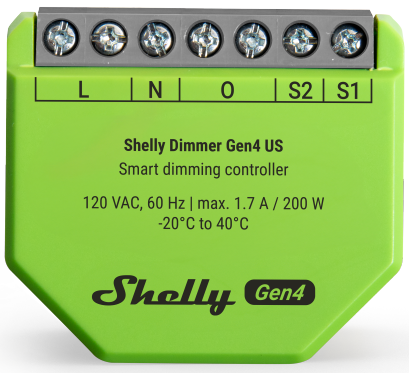
Device identification
-
Device name: Shelly Dimmer Gen4 US
-
Device model: S4DM-0A102US
-
Device SSID: ShellyDimmerG4US-XXXXXXXXXXXX
-
BLE ID: 0x1076
Short description
Shelly Dimmer Gen4 US (the Device) is exclusively designed for the US market. It is a single-channel smart dimming controller which allows remote control of dimmable lights and dimming drivers through a mobile phone, tablet, PC, or home automation system. The Device supports Wi-Fi, Bluetooth and Zigbee connectivity. It can work standalone in a local Wi-Fi network or it can also be operated through cloud home automation services. It can be accessed, controlled, and monitored remotely from any place where the User has internet connectivity, as long as it is connected to the Internet. Shelly Dimmer Gen4 US has an embedded Web Interface which can be used to monitor and control the Device, as well as adjust its settings. The Device can be used as trailing edge dimmer switch, only with neutral wire.
The Device is Matter compatible.
Main features
-
Groups of lights: Groups of lights can be used, but they should have the same consumption (should have the same model and producer)
-
Bluetooth: The Device complies the Bluetooth standard and can connect with other Bluetooth devices to exchange data in short range.
-
BLE Gateway: Facilitates communication between BLE and Wi-Fi-enabled devices.
-
Wi-Fi: The Device can connect to a wireless network.
-
Wi-Fi Range extender: Retransmits the Wi-Fi signal and extends its reach.
-
Zigbee: The device can be integrated into many popular smart home platforms and ecosystems like Home Assistant, Amazon Alexa, Samsung SmartThings, Google Smart Home.
-
Zigbee Range extender for IoT devices: A Zigbee extender is employed to expand the reach of your Zigbee network by receiving your Zigbee signal, enhancing its strength, and then transmitting the enhanced signal over a wider area.
-
Scripting: Allows creating automation scenarios through scripts.
-
Basic Schedules: Supports weekly schedules and routines, including setting of brightness, transition duration, and flip value of the dimming signal.
-
Аdvanced Schedules: Supports detailed schedules and routines throughout the year with a broad range of time adjustments from seconds to months, including setting of brightness, transition duration, and flip value of the dimming signal.
-
Auto on/off timers: Enables auto on/off timer setting.
-
Local actions: Allows creating automation scenarios within the local Wi-Fi network, including setting of brightness, transition duration, and flip value of the dimming signal.
-
Webhooks: Supports automation through lightweight, event-driven communication with other devices.
-
Compatibility: Highly compatible with 3rd Party home automation systems.
-
No need for hub: Ready for use locally or remotely via Shelly Smart Control or 3rd Party systems.
-
Activity log: Stores detailed history of events.
-
KVS (Key-value storage): KVS service provides a basic persistent storage of key-value pairs.
-
Safety: Оver current/voltage/power protections.
-
Power measurement: Information about voltage (V), current (A) and consumption (W) is displayed.
-
Night Mode: Enables to set a specific brightness of input lights during nighttime.
-
Transition duration: Controls the time for dimming from 0 to 100 % on toggle On and from 100 to 0% on toggle Off.
-
Minimum brightness on toggle On: Brightness level (in percent) applied when there is a toggle On and current brightness is lower than 'Min brightness on toggle'. Default is 3%. Not applied when explicit (custom) transition is defined in Schedules and Actions.
-
Min/Max brightness: Reframes the range of the dimming signal to get more precise brightness control on the output.
-
Switch/Button input mode: Allows flexible input control through switches and/or buttons
-
One button dimming control
-
Dual button dimming control
-
-
Button fade rate: Controls how quickly the output brightness changes while holding the button(s). Default is 3x.
-
Button presets: State to be applied on double-push (double-click) event. Default value is 100%
-
Warm-up: Set brightness and time that will create an initial impulse for light bulbs that need more energy to wake up when the brightness is below 10%.
-
Gamma correction: adjusts the control signal so that each step in dimming appears evenly spaced in brightness to prevent lights from seeming too jumpy at low levels or too compressed at high levels. Range: 0.4 - 4.0. Default value (no correction): 1.0
-
Automatic dimming calibration: Provides smooth dimming throughout the entire range. Must be performed on a new device, after a factory reset and after every change of the load.
-
On a new/factory reset device the calibration is started on the first toggle (through physical switch/button, mobile application, local web UI or rpc command)
-
Calibration can be started with simultaneous long-push for 5 seconds of the two buttons. The calibration lasts no more than 2 minutes and on success the light is On for 10 seconds, then goes off.
-
-
Virtual components: A special set of components that do not exist in the device initially and are created dynamically by the user.
-
KNX: Supports KNXnet/IP communication
-
Wide range of integrations: The device can be integrated with 3rd party home systems, documented HTTP API, MQTT(s), Web Hooks over HTTP and HTTPS, UDP
-
Integration with Smart Home Platforms: The device can be integrated with popular smart home platforms, including Google, Alexa, and Samsung SmartThings. This enables voice control and automation capabilities through these platforms.
-
Local and Cloud Control: The device can function independently in a local Wi-Fi network and can also be operated through cloud home automation services.
-
Matter: Matter provides quick and simple process of adding the device to the user’s smart home ecosystem.
Use cases
-
Retrofit your existing lighting system with the Dimmer Gen4 US and continue using your current switches and electrical installation.
-
Control you dimmable lights to set the perfect brightness.
-
Create smart schedules to have lights automatically adjust their brightness throughout the day.
-
Маке the atmosphere comfortable and relaxing for the clients in your restaurant, bar or cafe.
-
Sync your lights with sunrise and sunset times easily using smart schedules.
-
Activate a night mode for reduced brightness during nighttime hours.
-
Integrate the Dimmer Gen4 US with third-party systems like Home Assistant, Google Home, Alexa, and SmartThings for expanded control options.
-
Utilize the device to dim lights up or down with a single or double button press.
-
Enhance the safety by creating actions to have the lights automatically on when Shelly Motion detects movement.
Main applications
-
Residential
-
MDU (Multi Dwelling Units - apartments, condominiums, hotels, etc.)…
-
Light commercial (small office buildings, small retail/restaurant/gas station, etc.)…
-
Government/municipal
-
University/college
Integrations
Amazon Alexa supported capabilities
Google Smart Home supported traits
Samsung SmartThings supported capabilities
Simplified internal schematics
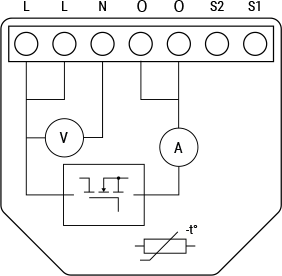
Device electrical interfaces
Inputs
-
2 switch/button inputs on screw terminals: S1 and S2
-
3 power supply inputs on screw terminals: 1 N and 2 L
Outputs
-
2 internally bridged outputs on screw terminals: 2 O
Add-on interface
Not supported
Connectivity
-
Wi-Fi
-
Bluetooth
-
Zigbee
-
Matter
Safety functions
-
Overheating protection
-
Overpower protection
-
Overvoltage protection
-
Undervoltage protection
-
Overcurrent protection
Supported load types
-
Dimmable LED lamps: up to 150 W
-
Incandescent bulbs: up to 200 W
-
Halogen lamps: up to 200 W
-
Iron-core transformer with low-voltage incandescent lamps: up to 200 VA
-
Dimmable electronic transformers: up to 200 W
User interface
Inputs
-
One (Control) button
-
Press and hold for 5 seconds to enable Device access point and Bluetooth connection.
-
Press and hold for 10 seconds to factory reset the Device.
-
Press the button 5 times to switch the Device from Matter (default) to Zigbee profile. The Device enters inclusion mode for 3 minutes. Include the Device following the instructions of your Zigbee home automation system.
-
Press the button 3 times to restart the inclusion mode for another 3 minutes if you missed the previous 3-minute window.
-
Outputs
-
LED (monocolor) indication
-
AP (Access Point) enabled and Wi-Fi disabled:
1 secondON/ 1 secondOFF -
Wi-Fi enabled, but not connected to a Wi-Fi network:
1 secondON/ 3 secondsOFF -
Connected to a Wi-Fi network:
ConstantlyON -
Cloud is enabled, but not connected:
1 secondON/5 secondsOFF -
Connected to Shelly Cloud:
ConstantlyON -
OTA (Over the Air Update):
½ secON/ ½ secondOFF -
Button pressed and held for 5 seconds:
½ secondON/ ½ secondOFF -
Button pressed and held for 10 seconds:
¼ secondON/ ¼ secondOFF
-
The list above starts with the initial device status and the lowest priority. Every next state cancels the previous one.
Specifications
|
Quantity |
Value |
|---|---|
|
Physical |
|
|
Size (HxWxD): |
38.5x43.5x17mm / 1.52x1.71x0.67in |
|
Weight: |
24.3 g / 0.86 oz |
|
Screw terminals max torque: |
0.39Nm / 3.5 lbin |
|
Conductor cross section: |
1 to 2.5 mm² / 18 to 14 AWG (solid, stranded, and bootlace ferrules) |
|
Conductor stripped length: |
5 to 6 mm / 0.20 to 0.24 in |
|
Construction of control |
Independently mounted |
|
Mounting: |
In-wall |
|
Shell material: |
Plastic |
|
Shell color: |
Lime |
|
Print color: |
Black |
|
Connectors color: |
Gray |
|
Environmental |
|
|
Ambient working temperature: |
-20°C to 40°C / -5°F to 105°F |
|
Humidity: |
30% to 70% RH |
|
Pollution degree |
2 |
|
Max. altitude: |
2000 m / 6562 ft |
|
Electrical |
|
|
Purpose of control |
Operating |
|
Power supply: |
120 VAC, 60 Hz |
|
Power consumption: |
< 1.5 W |
|
Neutral required |
Yes |
|
External protection: |
15 A, tripping characteristic B or C,
|
|
Output circuits ratings |
|
|
Action |
Type 1 |
|
Max. output power: |
200 W |
|
Max. current |
1.7 A |
|
Sensors, meters |
|
|
Voltmeter (AC): |
80 V - 160 V |
|
Voltmeter accuracy: |
± 5 % |
|
Ammeter (AC): |
0 A - 3 A |
|
Ammeter accuracy: |
± 5 % |
|
Internal-temperature sensor: |
Yes |
|
Radio |
|
|
Wi-Fi |
|
|
Protocol: |
802.11 b/g/n/ax |
|
RF band: |
2401 - 2483 МHz |
|
Max. RF power: |
< 20 dBm |
|
Range: |
Up to 30 m / 100 ft indoors and 50 m / 160 ft outdoors
|
|
Bluetooth |
|
|
Protocol: |
5.0 |
|
RF band: |
2400 - 2483.5 MHz |
|
Max. RF power: |
< 4 dBm |
|
Range: |
Up to 10 m / 33 ft indoors and 30 m / 100 ft outdoors
|
|
Zigbee |
|
|
Protocol: |
802.15.4 |
|
Zigbee repeater: |
Yes |
|
RF bands: |
2400 to 2483.5 MHz |
|
Max. RF power: |
< 20 dBm |
|
Range: |
Up to 100 m / 328 ft indoors and 300 meters / 984 ft outdoors
|
|
Microcontroller unit |
|
|
CPU: |
ESP-Shelly-C68F STM32 G051 |
|
Clock frequency: |
ESP-Shelly-C68F: 40 MHz |
|
Flash: |
8 MB |
|
Firmware capabilities |
|
|
Schedules: |
20 |
|
Webhooks (URL actions): |
20 with 5 URLs per hook |
|
Scripting: |
Yes |
|
MQTT: |
Yes |
Basic wiring diagrams
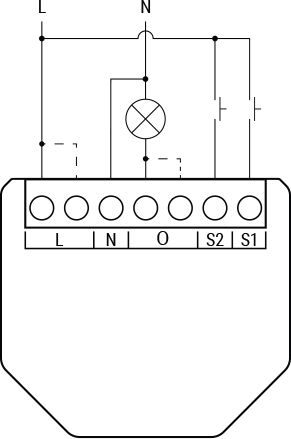
Legend
|
Terminals |
Wires |
||
|---|---|---|---|
|
L (x2) |
2 live terminals |
L |
Live (120 V~) wire |
|
N |
Neutral terminal |
N |
Neutral wire |
|
O (x2) |
2 output terminals to the load |
|
|
|
S1, S2 |
Switch/button input terminals for light control |
|
|
Troubleshooting
-
Verify both the working voltage of the device and the supplied voltage of your power grid:
-
Installing the device with a non-recommended power supply may result in malfunction.
-
-
Ensure that the device is properly powered:
-
Check power cables, outlets, and any power indicators on the device.
-
-
Inspect Power Supply Quality:
-
Poor power quality, including voltage spikes or fluctuations, can affect device performance. Consider using a surge protector or voltage regulator if needed.
-
-
Inspect Connections:
-
Verify that all connections, including cables and wiring, are secure and properly seated. Loose connections can lead to functionality issues.
-
-
Inspect Physical Components:
-
Physically inspect the device for any signs of damage or overheating.
-
-
Monitor Environmental Factors:
-
Consider environmental factors such as temperature and humidity.
-
-
Check Load Compatibility
-
If applicable, check the load and ensure it complies with the list of supported loads.
-
-
Check Network Connection:
-
If the device is connected to a network, ensure that the network settings are correct. Test the network connection and consider restarting routers or switches if needed.
-
-
Check Compatibility:
-
Ensure that the device is compatible with other components in your system, including hardware and software. Incompatibility issues can lead to malfunctions.
-
-
Review Device Settings:
-
If applicable, check and review the device settings. Ensure that configurations are correct and match your intended use.
-
-
Restart or Reboot:
-
Sometimes, a simple restart can resolve temporary glitches. Turn off the device, wait a few seconds, and then power it back on.
-
-
Update Firmware/Software:
-
Check if there are any available firmware or software updates for the device. Keeping the device up-to-date can resolve known issues and improve performance.
-
*These are general troubleshooting steps, and the specific steps may vary based on the type of device or issue you are facing. If the issue persists and you are unable to resolve it, consider reaching out to our technical customer support.