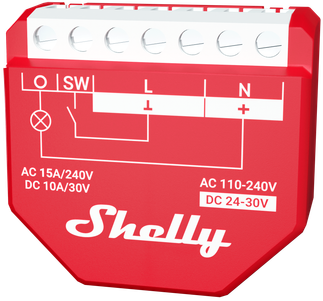
Device: Shelly Wave 1PM (US)
US Part number/Ordering Code: QLSW-001P15US
Z-Wave Product type ID: 0x0002
Z-Wave Product ID: 0x0084
Z-Wave Manufacturer: Shelly Europe
Z-Wave Manufacturer ID: 0x0460
This device supports both Z-Wave® (mesh) and Z-Wave® Long Range (star) network topologies. During the device inclusion process, you must select one type of network topology.
Bellow sections marked with * are valid only for Z-Wave® mesh network inclusion and are not applicable for Z-Wave® Long Range star network inclusion.
Terminology
Click to unhide/hide
OTA - Over-The-Air firmware update.
FW - Firmware
ZAF - Z-Wave® protocol
NIF - Node Information Frame; the frame that is sent at every adding (inclusion) to present/advertise the Device’s capability to the gateway, so that it may adjust its operating ability.
CC - Command Class (ZAF centerpiece of interoperability). The files/processes that determine how data is sent and handled/received. Command Classes include their signatures while sending data to allow recognition of which process is sending data for the destination device.
Switch - A toggle switch or a bi-stable switch.
Push-button - A momentary switch or a monostable switch.
Switch/push-button - It can be a switch or a push-button.
Double press - If the delay between the first and the second press on the switch/push-button is less than 500 ms, this is interpreted as a double press.
Gateway (GW) - A Z-Wave® gateway, also referred to as a Z-Wave® controller, Z-Wave® main controller, Z-Wave® primary controller, or Z-Wave® hub, etc., is a device that serves as a central hub for a Z-Wave® smart home network. The term “gateway” is used in this document.
Mesh network - devices can communicate with each other in addition to the gateway. Devices (only mains powered) can act as repeaters to extend network.
Long range network - devices can communicate only with gateway (no repeater function).
S button - The Z-Wave® Service button, located on Z-Wave® devices and is used for various functions such as adding (inclusion), removing (exclusion), resetting the device to its factory default settings and to switch power output on/off (valid only for Wave Plugs). The term "S button" is used in this document.
Device - In this document, the term “Device” is used to refer to the Shelly Wave device that is a subject of this guide.
End device - Z-Wave end devices are nodes in a Z-Wave network that are not gateways, such as switches, door locks, sensors, etc.
Node ID - The Z-Wave Node ID is a unique identifier assigned at the adding (inclusion) to each device in a Z-Wave network, allowing the network to identify and communicate with this device.
HOME ID - The Z-Wave Home ID is a unique identifier assigned to each Z-Wave network and each device in that network. It distinguishes your Z-Wave network from other networks and ensures that your Z-Wave devices only communicate with devices in your own network.
Adding/Inclusion - The process of adding Z-Wave device to a Z-Wave network - gateway. The words included, added, etc. are used in this regard.
Removing/Exclusion - The process of removing Z-Wave device from a Z-Wave network - gateway. The words excluded, removed, etc. are used in this regard.
Factory reset - After Factory reset, all custom parameters and stored values (kWh, associations, routings, etc.) will return to their default state. The HOME ID and NODE ID assigned to the Device will be deleted. Use this reset procedure only when the gateway is missing or otherwise inoperable.
*Learn mode - a state that allows the Device to receive network information from the gateway.
Normal mode - Is the state of the device which refers to the operational state of a device when it is functioning under regular conditions (switching on/off, dimming, etc.) either during active usage or while in standby mode but still powered.
SmartStart - SmartStart enabled devices can be added (included) to a Z-Wave network by scanning the Z-Wave QR code on the device with a Gateway that supports SmartStart inclusion. The SmartStart enabled device will be automatically added within 10 minutes of being switched on in the vicinity of the Z-Wave network.
MUST - MUST be implemented
OPTIONAL - implement it if time/budget allows
Associations - Associations are used for direct communication between the Device and other devices within your Z-Wave network without the need of the Z-Wave gateway.
Power cycle - Reboot the Device/power supply On/Off of the Device
Blind - Refers to any kind of window treatment, such as venetian blinds, roller blinds (screens), roller shutters, vertical window blinds, curtains, integral venetian blinds, pleated blinds, awnings, etc. Additionally, Wave Shutter can also control window motors, projector screens, or any type of bi-directional AC motor.
Power consumption (W) - refers to the rate at which energy is consumed or used by an electrical device or system. It is measured in watts (W).
Energy consumption (kWh) - refers to the total amount of electrical energy consumed by a device or system over a specific period of time. It is measured in kilowatt-hours (kWh).
Ordering code - The ordering code is the same as the Part number (PN). Where there is not enough space to write the Ordering code, abbreviation PN is used. The PN is written on the DSK label on each device.
Short description
The Device is a single product that enables the control of the on/off function for one electrical appliance such as bulb, ceiling fan, IR heater (with load up to 15 A). It measures power consumption of the connected device. The Device is compatible with switches (default) and push-buttons.
Use cases
Click to unhide/hide
Appliance Control: Use it to remotely control and automate the operation of various electric appliances such as lights, fans, or other devices.
Power Monitoring: Monitor the power consumption of connected appliances in real-time. This is useful for understanding energy usage patterns and promoting energy efficiency.
Home Automation: Integrate the Device into your home automation system to create custom scenes and schedules for your devices.
Energy Efficiency: Leverage the power measurement feature to identify energy-hungry appliances and make informed decisions to improve overall energy efficiency in your home.
Remote Monitoring: Keep an eye on your devices even when you're away from home. The remote access feature allows you to monitor and control connected appliances from anywhere with internet connectivity.
🏠 Home Automation Use Cases
1. Lighting Control with Power Monitoring
Remotely control lights and monitor their power consumption.
Detect if a bulb has failed by observing power usage.
Identify which rooms have high lighting energy usage.
2. Appliance Monitoring and Automation
Automate and track usage of high-load appliances (e.g., oven, dishwasher, washing machine).
Use power data to trigger automation's (e.g., notification when laundry is done).
Schedule devices to run during off-peak energy hours.
3. Heater and Boiler Control
Turn on/off electric water heaters or room heaters (Max. switching current: 16A).
Monitor energy consumption to understand heating costs.
Automate based on temperature or time-of-day schedules.
4. Overload Protection
Protect connected appliances by setting maximum power thresholds.
Automatically shut off if power draw exceeds limits.
🏢 Commercial & Retail Applications
1. Energy Optimization in Offices
Track and optimize energy use for shared equipment (printers, coffee machines).
Automate equipment shut-off after working hours.
2. Lighting Zones with Energy Analytics
Group lighting by zones and analyze energy patterns for cost-saving.
3. Preventive Maintenance
Detect abnormal power consumption trends to anticipate faults in machines or fixtures.
🏭 Industrial & Utility Applications
1. Motor or Pump Control with Monitoring
Control irrigation or circulation pumps.
Monitor energy use to detect if a motor is under- or over-performing.
2. Solar/Off-Grid Power Use Tracking
Monitor the load on circuits fed by inverters or battery backups.
Optimize load based on solar production or battery capacity.
Basic functions
SmartStart
Assocciations
Working as Z-Wave repeater
Switching On/Off load connected to O (O1)
Automatically switching On/Off load connected to O (O1)
Measuring Power consumption (W) and Energy consumption (kWh) of all connected loads.
OTA - Over-The-Air firmware update
Operational Instructions
Click to unhide/hide
Switch/push-button connected to input terminal SW (SW1)
If the SW (SW1) is configured as a switch (default), each toggle of the switch will change the output O (O1) state to the opposite state - on, off, on, etc. If the SW (SW1) is configured as a push-button in the Device settings, each press of the push-button will change the output O (O1) state to the opposite state - on, off, on, etc.
Switch connected to input terminal SW (SW1)If the SW (SW1) is configured as a switch (default), each toggle of the switch will change the output O (O1) state to the opposite state - on, off, on, etc.Change switch position once: Change the state of the output O (O1) state to the opposite state and send the command to the associated devices in associated groups 2 and 3 (check chapter Z-Wave Association).
Switch-memory connected to input terminal SW (SW1)If the SW (SW1) is configured as a switch-memory, than:Switching to Close switch-memory contact: Change the state of the output state O (O1) to the On state and send command to the associated devices in associated groups 2 and 3 (check chapter Z-Wave Association)Switching to Open switch-memory contact: Change the state of the output state O (O1) to the Off state and send command to the associated devices in associated groups 2 and 3 (check chapter Z-Wave Association)
Push-button connected to input terminal SW (SW1)If the SW (SW1) is configured as a push-button in the Device settings, each press of the push-button changes the output state O (O1) to opposite - ON, OFF, ON, etc.Single press: Change the state of the output state O (O1) to the opposite one and send command to the associated devices in associated groups 2 and 3 (check chapter Z-Wave Association)Double press: If the delay between first in second press is less then 500ms, this is interpreted as double press. Send command to the associated devices (dimmers, shutters,….) in associated groups 2 and 3 (check chapter Z-Wave Association)Press and hold: Send command to the associated devices in associated group 3 (check chapter Z-Wave Association)Release: Send command to the associated devices in associated group 3 (check chapter Z-Wave Association)
Switching On/Off load connected to O (O1)
Load connected to O (O1)is possible to switch On/Off by:by Z-Wave commandAutomatically switching can be enabled by proper Parameters No. 19 and 20 settings.
pressing the switch/push-button SW (SW1): Change the state of the connected load to the opposite one
pressing the S button: Change the state of the connected load to the opposite one
Power consumption measurement
It measures Power consumption (W) of the all connected loads. The measured values are sent to Gateway according to Parameters No. 36 and 39 settings.
Energy consumption measurement
Energy consumption (kWh) the Device calculate based on measured Power (W) during the time. Energy consumption measurement value is sent to the Gateway when the value increase for 0,1 kWh as unsolicited report.
Storing and resetting kWh
Store kWh in flash memory immediately after recognizing lost power supply.kWh can be reset by:Factory resetZ-wave command classKWh is not possible to reset with S button. OTA has no influence on kWh stored value, the kWh stored value remains after OTA firmware update.
Main applications
Residential
MDU (Multi Dwelling Units - apartments, condominiums, hotels, etc.)
Light commercial (small office buildings, small retail/restaurant/gas station, etc.)
Government/municipal
University college
Integrations
Shelly Wave devices are developed on the world's leading technology for smart homes – Z-Wave.
This means Shelly Wave works with all certified gateways supporting Z-Wave communication protocol.
To make sure the functions of Shelly Wave products are supported on your gateway, we are regularly executing compatibility tests of our devices with different Z-Wave gateways.
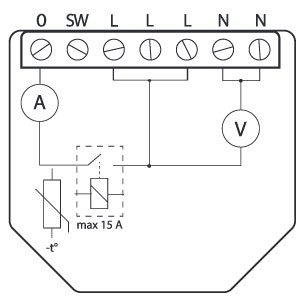
Simplified internal schematics
Device electrical interfaces
Inputs
1 switch/push-button input on screw terminal
5 power supply inputs on screw terminals: 2 N (+) and 3 L (Ʇ)
Outputs
1 relay output with power measurement on screw terminal
Device has internal Overheat protection. If the temperature exceeds predefined values 80°C for more than 5s, the Device will:
switch off its own outputsend the Notification Report to the gateway (Overheat detected)the LED lights react as specified above (check LED blinking mode for Overheat detected)The alarm can be reset either by performing a power cycle or, on supported models, by using Parameter 117 – Power Cycle Device, which performs the same function.
NOTE: The Overheat protection is always active and cannot be disabled.
Additional description above under chapter Notification for Overheat detected.
Overcurrent Protection
Device has internal Overcurrent protection. If the current exceeds 15A+10% (Max switching current +10%) for more than 5s, the Device will:
switch off its own outputsends the Notification Report to the gateway (Overcurrent detected)the LED lights react as specified above (check LED blinking mode for Overcurrent detected)The alarm can be reset either by performing a power cycle or, on supported models, by using Parameter 117 – Power Cycle Device, which performs the same function.
NOTE: The Over-current protection is always active and cannot be disabled.
Additional description above under chapter Notification for Over-current detected.
Overvoltage Protection
Device has internal Overvoltage protection. This is valid for standard power supply voltage 230 V AC. If the voltage exceeds 240 V AC+15% (278 V AC) for more than 5s, the Device will:
switch off its own outputsends the Notification Report to the Gateway (Overvoltage detected)the LED lights react as specified above (check LED blinking mode for Overvoltage detected)The alarm can be reset either by performing a power cycle or, on supported models, by using Parameter 117 – Power Cycle Device, which performs the same function.
NOTE: The Over-voltage protection is always active and cannot be disabled.
Additional description above under chapter Notification for Over-voltage detected.
S button and operating modesSettings mode:Is required to start the desired procedure, for example: adding (inclusion (*not available for Long Range devices)), removing (exclusion), factory reset, etc. It has a limited operating time. After completing the procedure in Setting mode, the Device automatically switches to Normal mode. Entering Setting mode:Press and hold the S button on the Device until the LED turns solid blue.An additional quick press on the S button changes the menu in an infinite loop.The Menu LED status has a timeout of 10s before entering again into Normal mode.
S button’s functionsManually adding the Device to a Z-Wave network (*not available for Long Range inclusion)Manually removing the Device from a Z-Wave networkFactory Reset the Device
LED Signalisation
Click to see LED signalisation
General rulesSwitching between Normal and Settings mode is done by press and hold the S button.Solid LED means that you are in the Settings mode (this is not valid for Plugs). Once in settings mode, switch to normal mode goes automatically after 10s.If the LED is not in Alarm mode, it will turn off after a timeout of 30min. Pressing the S button or power cycling the Device will wake the LED for 30min.During module boot up LED will blink in mode 5 (0,2s On blue/0,2s On red) for 4-5 s.Normal mode LED status: Normal mode is defined by stable device function that can remain for an infinite time.
LED type: RGB dimmable
Normal mode
Removed/Excluded
The LED will be blinking blue in Mode 1 for 30min after every power cycle and 10min after S button pressed.
Added/Included
The LED will be blinking green in Mode 1 for 30min after every power cycle and 10min after S button pressed.
Settings in progress
Factory reset and reboot
During factory reset, the LED will turn solid green for approx. 1sec, then the blue and red LED will be blinking 0,1s On / 0,1s Off for about 2sec.
Adding / Removing
During adding or removing, the LED will be blinking blue in Mode 2.
OTA firmware updating
During the OTA update, the LED will be blinking blue and red in Mode 2.
Checking AC or DC voltage power supply
During checking the power supply, the LED will be blinking blue and red in Mode 5.
Settings mode with S button
Adding / Removing menu selected (*adding not available for Long Range inclusion)When the menu is selected the LED will be on blue, for maximum of 10 seconds.
Adding / Removing menu - while pressing S- button - Add/Remove process selected (*adding not available for Long Range inclusion)When the menu is executing the LED will be blinking blue in Mode 3.
Factory reset menu selectedWhen the menu is selected the LED will be on red, for maximum of 10 seconds.
Factory reset - while pressing S - button - Factory reset process selectedWhen the menu is executing the LED will be blinking red in Mode 3.
Alarm Mode
Overcurrent detected OThe LED will be blinking red in Mode 4 Overheat detected The LED will be blinking red in Mode 4 Overvoltage detectedThe LED will be blinking red in Mode 4
LED blinking modes
Click to see the LED blinking modes
LED blinking modes
Mode 1
0,5s On/2s Off
Mode 2
0,5s On/0,5s Off
Mode 3
0,1s On/0,1s Off
Mode 4
(1x to 6x - 0,2s On/0,2s Off) + 2s Off
Mode 5
0,2s On blue/0,2s On red
Technical Specifications
Power supply
110 - 240 V AC / 24–30 V DC
Power consumption
< 0.3 W
Power measurement (W)
Yes (only for AC)
Max switching voltage AC
240 V
Max switching current AC
15 A
Max switching voltage DC
30 V
Max switching current DC
10 A
Overheating protection
Yes
Overcurrent protection
Yes
Overvoltage protection
Yes
Long range network
Distance (depends on local condition)
Up to 80 m indoors (262 ft.) or up to 1000 m outdoors (3281 ft.)
Z-Wave® repeater
No
Z-Wave® frequency bands
912 MHz
Mesh network
Distance (depends on local condition)
Up to 40 m indoors (131 ft.)
Z-Wave® repeater
Yes
Z-Wave® frequency bands
908.4 MHz
CPU
Z-Wave® S800
Purpose of control
Operating
Mounting
Flush mounting
Construction of control
Independently mounted
Type of action
Type 1.B
Overvoltage category
III
Pollution degree
2
Impulse voltage
4000 V
Size (H x W x D)
37x42x16 ± 0.5 mm / 1.46x1.65x0.63 ± 0.02 in
Weight
27 g / 0.95 oz.
Screw terminals max. torque
0.4 Nm / 3.5 lbin
Conductor cross section
0.5 to 1.5 mm² / 20 to 16 AWG
Conductor stripped length
5 to 6 mm / 0.20 to 0.24 in
Shell material
Plastic
Color
Red
Ambient temperature
-20°C to 40°C / -5°F to 105°F
Humidity
30% to 70% RH
Max. altitude
2000 m / 6562 ft.
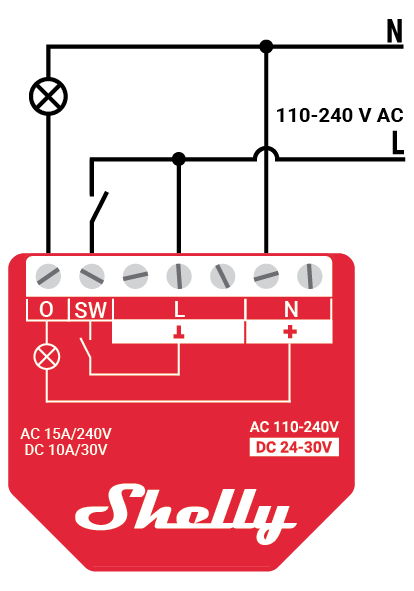
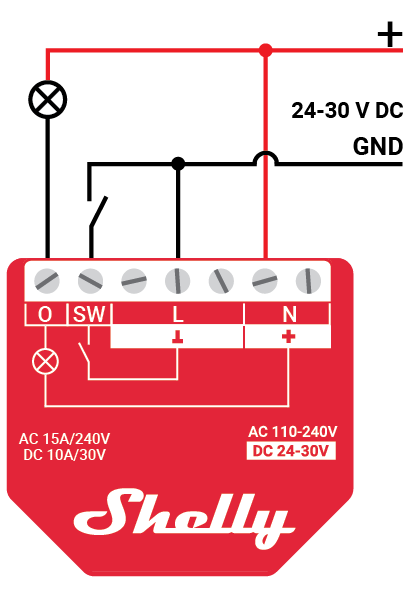
Basic wiring diagram
Fig.1
Fig.2
Legend
Device terminals:
N: Neutral terminal
L: Live terminal(s) (110-240 V AC)
SW (SW1): Switch/push-button input terminal (controlling O (O1))
O (O1): Load circuit (1) output terminal
+: 24 - 30 V DC positive terminal
ꓕ: 24 - 30 V DC ground terminal
Wires:
N: Neutral wire
L: Livewire (110-240 V AC)
+: 24 - 30 V DC positive wire
GND: 24 - 30 V DC ground wire
Button:
S: S button
About Z-Wave®
Click to unhide/hide
The Z-Wave® protocol is an interoperable, wireless, RF-based communications technology designed specifically for control, monitoring, and status reading applications in residential and light commercial environments. Mature, proven, and broadly deployed, Z-Wave® is by far the world market leader in wireless control, bringing affordable, reliable, and easy-to-use 'smart' products to millions of people in every aspect of daily life.
Interoperability has always been at the core of the Z-Wave® protocol, alongside the features like backward compatibility, security, and reliability. All Z-Wave® devices can be operated in any Z-Wave® network with other Z-Wave® certified devices, regardless of brand or manufacturer. All mains operated nodes within the network will act as repeaters regardless of vendor to increase the reliability of the network. There are 4000+ Z-Wave® certified products that are backwards- and forwards-compatible in the Z-Wave® ecosystem and well over 100 million devices currently in the market.
With over 20 years in the marketplace, Z-Wave® technology has best-in-class security measures to keep your home network smarter and safer.
Adding and removing the Device to a Z-Wave® network
Click to see how to add, remove and reset the Device
Adding the Device to a Z-Wave® network (inclusion)
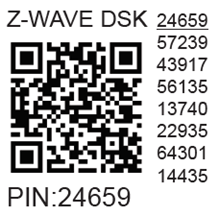
Note!In case of Security 2 (S2) adding (inclusion), a dialog will appear asking you to enter the corresponding PIN Code (5 underlined digits) that are written on the Z-Wave® DSK label on the side of the Device and on the Z-Wave® DSK label inserted in the packaging. IMPORTANT: The PIN Code must not be lost.
SmartStart adding (inclusion)SmartStart enabled products can be added into a Z-Wave® network by scanning the Z-Wave® QR Code present on the Device with a gateway providing SmartStart inclusion. No further action is required, and the SmartStart device will be added automatically within 10 minutes of being switched on in the network vicinity.With the gateway application scan the QR code on the Device label and add the Security 2 (S2) Device Specific Key (DSK) to the provisioning list in the gateway.Connect the Device to a power supply.Check if the blue LED is blinking in Mode 1. If so, the Device is not added to a Z-Wave® network.Adding will be initiated automatically within a few seconds after connecting the Device to a power supply, and the Device will be added to a Z-Wave® network automatically.The blue LED will be blinking in Mode 2 during the adding process.The green LED will be blinking in Mode 1 if the Device is successfully added to a Z-Wave® network.
Adding (inclusion) with the S button (*not available for Long Range inclusion)Connect the Device to a power supply.Check if the blue LED is blinking in Mode 1. If so, the Device is not added to a Z-Wave® network.Enable add/remove mode on the gateway.To enter the Setting mode, press and hold the S button on the Device until the LED turns solid blue.Release and then press and hold (> 2s) the S button on the Device until the blue LED starts blinking in Mode 3. Releasing the S button will start the Learn mode.The blue LED will be blinking in Mode 2 during the adding process.The green LED will be blinking in Mode 1 if the Device is successfully added to a Z-Wave® network.
Note!In Setting mode, the Device has a timeout of 10s before entering again into Normal mode.
Adding (inclusion) with a switch/push-button (*not available for Long Range inclusion)Connect the Device to a power supply.Check if the blue LED is blinking in Mode 1. If so, the Device is not added to a Z-Wave® network.Enable add/remove mode on the gateway.Toggle the switch/push-button connected to any of the SW terminals (SW, SW1, SW2, etc.) 3 times within 3 seconds (this procedure puts the Device in Learn mode*). The Device must receive on/off signal 3 times, which means pressing the momentary switch 3 times, or toggling the switch on and off 3 times.The blue LED will be blinking in Mode 2 during the adding process.The green LED will be blinking in Mode 1 if the Device is successfully added to a Z-Wave® network.*Learn mode - a state that allows the Device to receive network information from the gateway.
Removing the Device from a Z-Wave® network (exclusion)
Note!The Device will be removed from your Z-Wave® network, but any custom configuration parameters will not be erased.
Removing (exclusion) with the S buttonConnect the Device to a power supply.Check if the green LED is blinking in Mode 1. If so, the Device is added to a Z-Wave® network.Enable add/remove mode on the gateway.To enter the Setting mode, press and hold the S button on the Device until the LED turns solid blue.Release and then press and hold (> 2s) the S button on the Device until the blue LED starts blinking in Mode 3. Releasing the S button will start the Learn mode.The blue LED will be blinking in Mode 2 during the removing process.The blue LED will be blinking in Mode 1 if the Device is successfully removed from a Z-Wave® network.
Note!In Setting mode, the Device has a timeout of 10s before entering again into Normal mode.
Removing (exclusion) with a switch/push-buttonConnect the Device to a power supply.Check if the green LED is blinking in Mode 1. If so, the Device is added to a Z-Wave® network.Enable add/remove mode on the gateway.Toggle the switch/push-button connected to any of the SW terminals (SW, SW1, SW2,…) 3 times within 3 seconds (this procedure puts the Device in Learn mode). The Device must receive on/off signal 3 times, which means pressing the momentary switch 3 times, or toggling the switch on and off 3 times.The blue LED will be blinking in Mode 2 during the removing process.The blue LED will be blinking in Mode 1 if the Device is successfully removed from a Z-Wave® network.
Factory reset
Factory reset generalAfter Factory reset, all custom parameters and stored values (kWh, associations, routings, etc.) will return to their default state. HOME ID and NODE ID assigned to the Device will be deleted. Use this reset procedure only when the gateway is missing or otherwise inoperable.
Factory reset with the S button
Note! Factory reset with the S button is possible anytime.
To enter the Setting mode, press and hold the S button on the Device until the LED turns solid blue.Press the S button multiple times until the LED turns solid red.Press and hold (> 2s) S button on the Device until the red LED starts blinking in Mode 3. Releasing the S button will start the factory reset.During factory reset, the LED will turn solid green for about 1s, then the blue and red LED will start blinking in Mode 3 for approx. 2s.The blue LED will be blinking in Mode 1 if the Factory reset is successful.
Factory reset with a switch/push-button
Note!Factory reset with a switch/push-button is only possible within the first minute after the Device is connected to a power supply.
Connect the Device to a power supply.Toggle the switch/push-button connected to any of the SW terminals (SW, SW1, SW2,…) 5 times within 3 seconds. The Device must receive on/off signal 5 times, which means pressing the push-button 5 times, or toggling the switch on and off 5 times.During factory reset, the LED will turn solid green for about 1s, then the blue and red LED will start blinking in Mode 3 for approx. 2s.The blue LED will be blinking in Mode 1 if the Factory reset is successful.
Remote factory reset with parameter with a gatewayFactory reset can be done remotely with the settings in Parameter No. 120.
Security and Device Specific Key (DSK)
Click to see about the Security and the DSK
The Device supports the latest Security 2 (S2) feature. S2 is handled by the strong AES 128 Encryption protocol, which means that the S2 makes Z-Wave® the most secure IoT (Internet of Things) security platform out there. To fully utilize the product and its Security 2 feature, a Security 2-enabled Z-Wave® gateway must be used.
Authenticated Control
Out-Of-Band DSK for adding (inclusion)
May be used by most implementations
The Device also supports Security 2 Authenticated, Unauthenticated, and Unsecure adding (inclusion).
Note! When adding the Device to a Z-Wave® network with a gateway supporting Security 2 (S2), the PIN Code of the Z-Wave® Device Specific Key (DSK) is required. You can find it on the label on the side of the Device and a copy is inserted in the packaging, which must not be lost. Do not remove the Z-Wave® DSK label from the Device. As a backup measure, use the label in the packaging.
The first five digits of the key are highlighted or underlined to help the user identify the PIN Code part of the DSK text. The DSK is additionally represented with a QR Code as shown on the image.
Z-Wave® DSK label and QR code (example)
A joining node requesting to join the S2 Access Control Class or the S2 Authenticated Class will obfuscate its Public Key by setting the bytes 1..2 to zeros (0x00) before transferring its key via RF.
The DSK may be used for out-of-band (OOB) authentication.
The including gateway may use a QR code scanning device to read the entire DSK of the joining device and match it with the obfuscated public key received via RF from the joining device.
Setting Parameters
Click here to see the Z-Wave Parameters
Parameter No. 1 - SW (SW1) Switch type
This parameter defines how the Device should treat the switch (which type) connected to the SW (SW1) terminal.
Value size: 1 Byte
Default value: 2
Values & descriptions:
0 - momentary switch (push button),
1 - toggle switch (contact closed - ON / contact opened - OFF),
2 - toggle switch (Device changes status when switch changes status)
Parameter No. 17 - Restore the O (O1) state after a power failure
This parameter determines if the on/off status is saved and restored for the load connected to O (O1) after a power failure.
Values size: 1 Byte
Default value: 0
Values & descriptions:
0 - Device saves last on/off status and restores it after a power failure
1 - Device does not save on/off status and does not restore it after a power failure, it remains off
NOTE: This functionality does not apply when Parameter 1 is configured with the value "1 - toggle switch (contact closed - ON / contact opened - OFF)"
Parameter No. 19 - O (O1) Auto OFF with timer
If the load O (O1) is ON, you can schedule it to turn OFF automatically after the period of time defined in this parameter. The timer resets to zero each time the Device receives an ON command, either remotely (from the gateway or associated device) or locally from the switch.
Values size: 2 Byte
Default value: 0
Values & their descriptions:
0 - Auto OFF Disabled
1 - 32535 = 1 - 32535 seconds or milliseconds – see Parameter no. 25. Set timer units to s or ms for O (O1) resolution 100ms
Parameter No. 20 - O (O1) Auto ON with timer
If the load O (O1) is OFF, you can schedule it to turn ON automatically after the period of time defined in this parameter. The timer resets to zero each time the Device receives an OFF command, either remotely (from the gateway or associated device) or locally from the switch.
Values size: 2 Byte
Default value: 0
Values & their descriptions:
0 - Auto ON Disabled
1 - 32535 = 1 - 32535 seconds or milliseconds – see Parameter no. 25. Set timer units to s or ms for O (O1) resolution 100ms
Parameter No. 23 - O (O1) contact type - NO/NC
The set value determines the relay contact type for output O (O1). The relay contact type can be normally open (NO) or normally closed (NC).
Values size: 1 Byte
Default value: 0
Values & descriptions:
0 - NO
1 - NC
Relay logic:
Par-NO/NC
Command (switch, Z-Wave…)
Device output state
NO (0)
OFF
OFF (0 V)
NO (0)
ON
ON (230 V)
NC (1)
OFF
ON (230 V)
NC (1)
ON
OFF (0 V)
Parameter No. 25 - Set timer units to s or ms for O (O1)
Set the timer units to seconds or milliseconds. Choose if you want to set the timer in seconds or milliseconds in Parameters No. 19, 20.
Values size: 1 Byte
Default value: 0
Values & descriptions:
0 – timer set in seconds
1 – timer set in milliseconds
Parameter No. 36 - O (O1) Power report on change - percentage
This parameter determines the minimum change in consumed power that will result in sending a new report to the gateway.
Values size: 1 Byte
Default value: 50
Values & descriptions:
0 - reports are disabled
1-100 (1-100%) - change in power
NOTE: Regardless of the power consumption change in percentage, the report will not be sent more frequently than defined by Parameter No. 39.
Parameter No. 39 - Minimum time between reports (O) O1
This parameter determines the minimum time that must elapse before a new power report on O (O1) is sent to the gateway.
Values size: 1 Byte
Default value: 30
Values & descriptions:
0 - reports are disabled
1-120 (1-120s) - report interval
NOTE: This Parameter is in relation to Parameter No. 36.
NOTE: Setting the value to less than 30s can cause the Z-Wave network congestion state (slow Device response and decreased network stability).
Parameter No. 117 - Remote Device reboot
This parameter enable restarting or rebooting the Device without physical intervention. Use this parameter only for troubleshooting scope. After device reboot the parameter value will be set to default.
Values size: 1 Byte
Default value: 0
Values & descriptions:
0 - function inactive
1 - Remote device reboot
Parameter No. 120 - Factory ResetReset to factory default settings and removed from the Z-Wave network.The parameter is Advanced and may be hidden under the Advanced tag.Values size: 1 ByteDefault value: 0Values & descriptions:0 - No action1 - Factory reset
NOTE: After factory reset is performed, the parameter value is automatically set to 0.
Parameter No. 201 - Serial Number 1This parameter contains a part of device’s serial number.The parameter is Read-Only and cannot be changed.
The parameter is Advanced and may be hidden under the Advanced tag.Values size: 4 ByteDefault value: Device specificValues & descriptions:· 0x00000000 - 0x7FFFFFFF
Parameter No. 202 - Serial Number 2This parameter contains a part of device’s serial number.The parameter is Read-Only and cannot be changed.
The parameter is Advanced and may be hidden under the Advanced tag.Values size: 4 ByteDefault value: Device specificValues & descriptions:· 0x00000000 - 0x7FFFFFFF
Parameter No. 203 - Serial Number 3This parameter contains a part of device’s serial number.The parameter is Read-Only and cannot be changed.
The parameter is Advanced and may be hidden under the Advanced tag.Values size: 4 ByteDefault value: Device specificValues & descriptions:· 0x00000000 - 0x7FFFFFFF
Command Classes
Click to see the Z-Wave Command Classes
ASSOCIATION_V2 [S0, S2]*
ASSOCIATION_GRP_INFO_V3 [S0, S2]*
BASIC_V2 [S0, S2]*
SWITCH_BINARY_V2 [S0, S2]*
CONFIGURATION_V4 [S0, S2]*
DEVICE_RESET_LOCALLY_V1 [S0, S2]*
FIRMWARE_UPDATE_MD_V5 [S0, S2]*
INDICATOR_V3 [S0, S2]*
MANUFACTURER_SPECIFIC_V2 [S0, S2]*
METER_V6 [S0, S2]*
MULTI_CHANNEL_ASSOCIATION_V3 [S0, S2]*
NOTIFICATION_V8 [S0, S2]*
POWERLEVEL_V1 [S0, S2]*
SECURITY_V1
SECURITY_2_V1
SUPERVISION_V1
TRANSPORT_SERVICE_V2
VERSION_V3 [S0, S2]*
ZWAVEPLUS_INFO_V2
[S2]* Security S2 Command Class
NOTE: MAPPING OF COMMAND_CLASS_BASIC
Supporting Command Class Basic
COMMAND_CLASS_BASIC is mapped into COMMAND_CLASS_SWITCH_BINARY, for enabling Switch (O) control:
Switch (O) will be turned ON or OFF, after receiving the BASIC_SET command:
Basic Command received
Mapped Command (binary Switch)
Basic Set (0xFF)
Switch Binary Switch (0xFF)
Basic Set (0x00)
Switch Binary Switch (0x00)
Basic GET
Basic Report (Current Value, Target Value)
Supporting Command Class IndicatorThe Device supports the Command Class Indicator V3 (ID 0x50). When the Device receives an indicator set, the LED blinks according to the received indicator set.Refer to LED Signalization chapter. Supporting Meter Command ClassThe product supports the meter command class and KWh is the default scale report send when the scale type is not present in the received Get.Supported Scale NameScale ValueWatt2KWh0
Notifications Command Class
Click to see the Z-Wave Notification Command Class
Overheat detected
Comment
Overheat detected
Z-Wave Notification Type Name
Heat Alarm
Z-Wave Notification type - Value
0x04
Z-Wave Notification type - Event
State
Z-Wave Notification Name
Overheat detected
Z-Wave Notification Name - Value
0x02
Z-Wave Notification Name - Version
V2
LED signalization
Check LED signalization table
Device reaction - Switch OFF all outputs and send notification
Yes
Action to restore - power cycle
Yes
Action to restore - short press on S button
Yes
Action to restore - press any switch-push button connected to any SW (SW, SW1, SW2, …) terminal
Yes
Over-current detected O
Comment
Over-current detected O (O1)
Z-Wave Notification Type Name
Power management
Z-Wave Notification type - Value
0x08
Z-Wave Notification type - Event
State
Z-Wave Notification Name
Over-current detected
Z-Wave Notification Name - Value
0x06
Z-Wave Notification Name - Version
V3
LED signalization
Check LED signalization table
Device reaction - Switch OFF the output O (O1) and send a notification
Yes
Action to restore - power cycle
Yes
Action to restore - short press on S button
Yes
Action to restore - press any switch-push button connected to any SW (SW, SW1, SW2, …) terminal
Yes
Over-voltage detected
Comment
Over-voltage detected
Z-Wave Notification Type Name
Power management
Z-Wave Notification type - Value
0x08
Z-Wave Notification type - Event
State
Z-Wave Notification Name
Over-voltage detected
Z-Wave Notification Name - Value
0x07
Z-Wave Notification Name - Version
V3
LED signalization
Check LED signalization table
Device reaction - Switch OFF all outputs and send notification
Yes
Action to restore - power cycle
Yes
Action to restore - short press on S button
Yes
Action to restore - press any switch-push button connected to any SW (SW, SW1, SW2, …) terminal
Yes
Associations
Click to see the Z-Wave Associations
Associations are used for direct communication between the Device and other devices within your Z-Wave network without the need of the Z-Wave gateway.
Max. number of associated devices per group is 9. This value is fixed and cannot be configured.
Each association group supports the association of up to 9 devices (nodes). To avoid network delays, we recommend limiting the number of associated devices to no more than 5 per group. "Lifeline group" is reserved for controlling devices, such as Gateways and remote controllers, or devices who can interpret the reports sent.Association group 1 – "Lifeline group" sends to the controlling device it's command class notifications and or command class reports when said command classes are triggered. Max. 9 nodes are allowed:
Root device
Root device - Association Group 1 - Lifeline
INDICATOR_REPORT : LED status
DEVICE_RESET_LOCALLY_NOTIFICATION : triggered upon request
SWITCH_BINARY_REPORT : status change report for output O (O1)
NOTIFICATION_REPORT : triggered on Overheat
NOTIFICATION_REPORT : triggered on Overcurrent detected O (O1)
NOTIFICATION_REPORT : triggered on Overvoltage detected
METER_REPORT : triggered by load power consumption connected to output O (O1) (according to the settings of Parameters No. 36 and 39)
Root device - Association Group 2 (*not available for Long Range inclusion) Association Group 2
Allowed nodes: 9
It is assigned to switch connected to the SW (SW1) terminal (uses Basic command class).
Triggered by SW (SW1). The device sends according to the state of SW (SW1) (switch or push-button) the command BASIC_SET ON or BASIC_SET OFF to the associated device. This command is reflected to the output of associated device. Supports the following command classes:BASIC_SET : set On / Off state at the associated device
Root device - Association Group 3 (*not available for Long Range inclusion)Association Group 3
Allowed nodes: 9
It is assigned to switch connected to the SW (SW1) terminal (uses Switch Multilevel command class). Triggered by SW (SW1). It is recommended to use push buttons for this association. Supports the following command classes:SWITCH_MULTILEVEL_START_LEVEL_CHANGE : initiate a transition to a new level (increase or decrease light intensity in case of dimmer, or move shutter up or down, …)SWITCH_MULTILEVEL_STOP_LEVEL_CHANGE : stop an ongoing transition (stop increase or decrease light intensity in case of dimmer, or stop moving shutter up or down, …)
Disclaimers and Warnings
READ BEFORE USE
This document contains important technical and safety information about the Device, its safe use and installation.
Click to unhide/hide
⚠WARNING! Risk of electric shock. Make sure that after installing the device, its screw terminals are not accessible to users and protected by accidental short circuits!
⚠WARNING! The operation of the service button must be managed by a professional installer. Risk of electric shock. ⚠CAUTION! Danger of electrocution. Every change in the connections must be done after ensuring there is no voltage present at the Device terminals. ⚠CAUTION! Use the Device only with a power grid and appliances that comply with all applicable regulations. A short circuit in the power grid or any appliance connected to the Device may damage it. ⚠CAUTION! Do not connect the Device to appliances exceeding the given max. load! ⚠CAUTION! Do not alter the antenna (the antenna must not be shortened, lengthened, or modified in any way!) ⚠CAUTION! Connect the Device only in the way shown in these instructions. Any other method could cause damage and/or injury. ⚠CAUTION! Do not install the Device where it can get wet. ⚠CAUTION! Do not use the Device if it has been damaged! ⚠CAUTION! Do not attempt to service or repair the Device yourself!⚠CAUTION! Do not interfere with the Device(any alteration or modification of the Device is prohibited). ⚠CAUTION! Before starting the mounting/installation of the Device, check that the breakers are turned off and there is no voltage on their terminals. This can be done with a mains voltage tester or multimeter. When you are sure that there is no voltage, you can proceed to connecting the wires. ⚠CAUTION! Use only one phase AC circuit. Do not use mixed AC and DC circuits. ⚠CAUTION! Do not allow children to play with the push-buttons/ switches connected to the Device. Keep the devices for remote control of Shelly Wave (mobile phones, tablets, PCs) away from children.
⚠RECOMMENDATION: Place the antenna as far away as possible from metal elements as they can cause signal interference. ⚠RECOMMENDATION: Connect the Device using solid single-core cables or stranded cables with ferrules. The cables should have insulation with increased heat resistance, not less than PVC T105°C (221°F). ⚠RECOMMENDATION: For inductive appliances that cause voltage spikes during switching on/off, such as electrical motors, fans, vacuum cleaners and similar ones, RC snubber (0.1 µF / 100 Ω / 1/2 W / 600 VAC) should be connected parallel to the appliance.
Z-Wave® Important disclaimer
Z-wave® wireless communication may not always be 100% reliable. This Device should not be used in situations in which life and/or valuables are solely dependent on its functioning. If the Device is not recognized by your gateway or appears incorrectly, you may need to change the Device type manually and ensure that your gateway supports Z-wave Plus® multi-channel devices and Z-wave® Long Range capability in case of Long Range devices.
detached mode if device reports scene commands single press, double press,…
D Binary
detached mode if the device reports binary On/Off by SW input
Sensor #
Is the sensor report visualized in the gateway, type of sensor in the notes.
Legend
Symbol
State
Working / Possible
❌
Not Working / Not Possible
P
Partially
N/T
Not Tested
TBD
To be done
FCC notes
This Device complies with Part 15 of the FCC Rules.
Operation is subject to the following two conditions: (1) this device may not cause harmful interference, and (2) this device must accept any interference received, including interference that may cause undesired operation.
The manufacturer is not responsible for any radio or TV interference caused by unauthorized modification or change to this equipment. Such modifications or change could void the user’s authority to operate the equipment.
This equipment has been tested and found to comply with the limits for a Class B digital device, pursuant to part 15 of the FCC Rules. These limits are designed to provide reasonable protection against harmful interference in a residential installation. This equipment generates, uses and can radiate radio frequency energy and, if not installed and used in accordance with the instructions, may cause harmful interference to radio communications. However, there is no guarantee that interference will not occur in a particular installation. If this equipment does cause harmful interference to radio or television reception, which can be determined by turning the equipment off and on, the user is encouraged to try to correct the interference by one or more of the following measures:
Reorient or relocate the receiving antenna.
Increase the separation between the equipment and receiver.
Connect the equipment into an outlet on a circuit different from that to which the receiver is connected.
Consult the dealer or an experienced radio/TV technician for help.
RF exposure statement:
This equipment complies with FCC radiation exposure limits set forth for an uncontrolled environment. The device has been evaluated to meet general RF exposure requirement. The device can be used in portable exposure condition without restriction.
Disposal & Recycling
This refers to the waste of electrical and electronic equipment. It is applicable in the US and other countries to collect waste separately.
This symbol on the product or in the accompanying literature indicates that the product should not be disposed of in the daily waste. Shelly Wave 1PM must be recycled to avoid possible damage to the environment or human health from uncontrolled waste disposal and to promote the reuse of materials and resources. It is your responsibility to dispose of the device separately from general household waste when it is already unusable.
Changes in the contact data are published by the Manufacturer at the official website: https://www.shelly.com
Legal Notice
This User Guide is subject to change and improvement without notice. Shelly Wave reserves all rights to revise and update all documentation without any obligation to notify any individual or entity.